
Synology Query HelpOverview - Help - Devices - Listings - Get Devices - Summary - Troubleshooting - FAQ - RESOURCES Overview Precursor Systems Synology Query is an tool to interact with the Synology Disk Station Manager (DSM) via its API. It can report on:
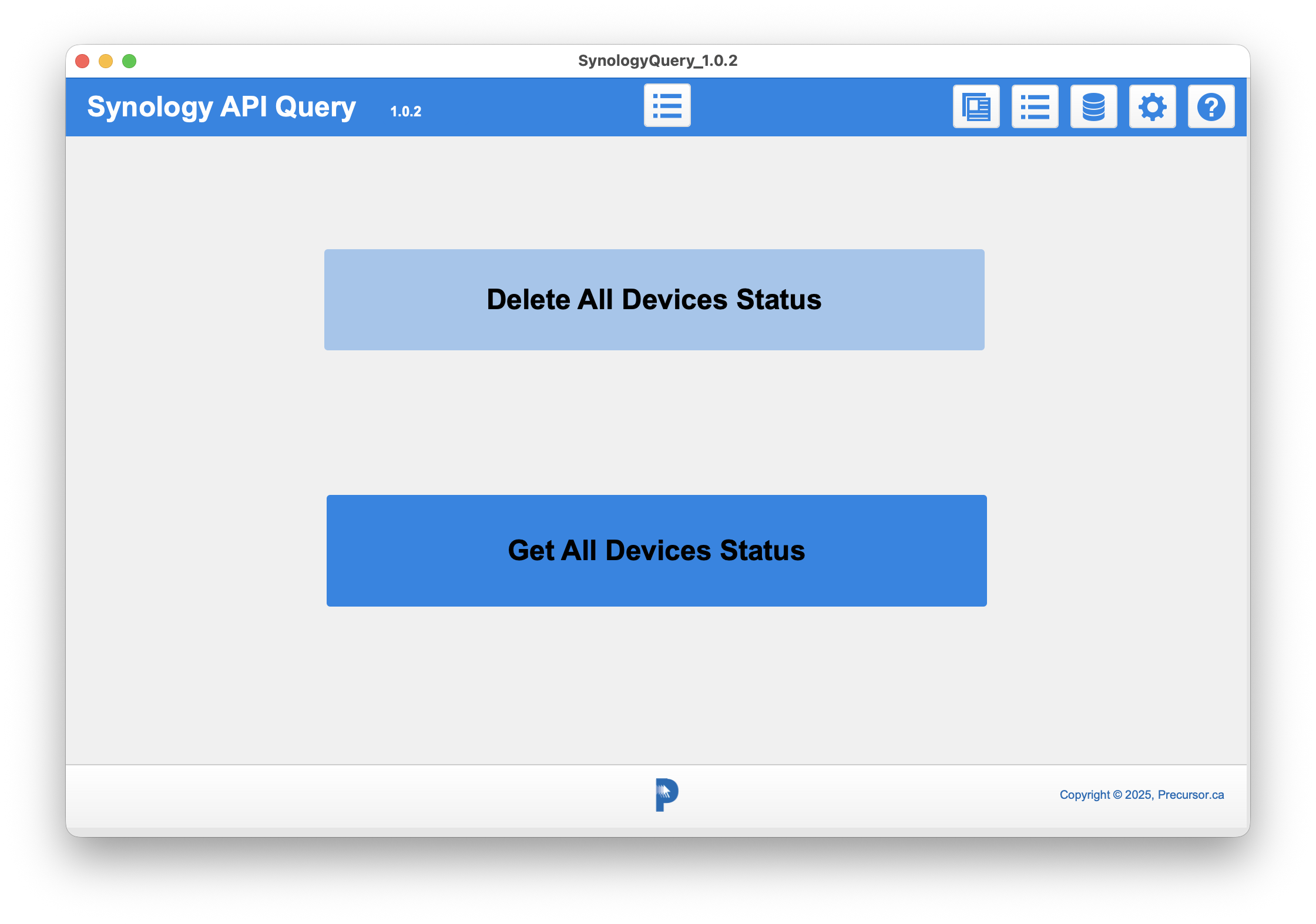

Before using the Get Device Info button you will want to add your organizations devices. You will need to supply:
If you have MBS Plugin and have supplied the OTP Secret all device info will be gathered automatically. Otherwise, you will use the above information to get the SID session code by adding in your 2FA / OTP passcode manually. Help  Brings you to this Help page.
Devices 
Brings you to the Devices query page that gets all the device information.
Listings 
Brings you to the Listings page to view based information at a glance. (Note: Full details are available on the Devices pages.)
API Docs 
Takes you to the Synology DSM API documentation page.
Get Devices 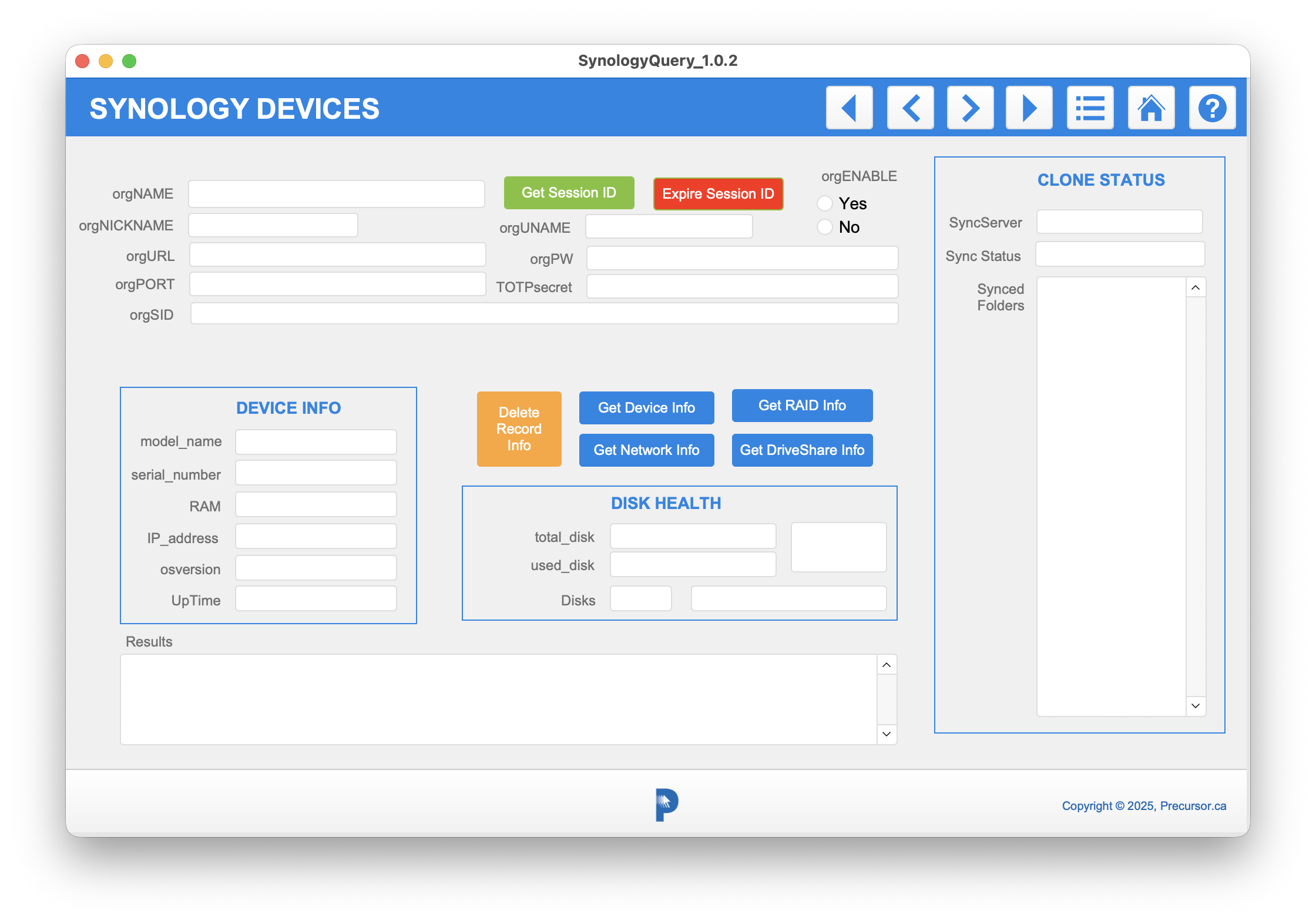 Before using the Get Device Info button on the home page you will want to add your organizations devices. In the top half of the page, you will need to supply:
If you have MBS Plugin you can skip the following section on manually getting your sessions code and proceed to Get Device Info. You will use the above information to get the SID session code by adding in your 2FA / OTP password. To get the Session Code (SID), Click the "Get Session ID" button and add your current 2FA/OTP code from your autheticator app. Once you have an SID you will be able to click any of the blue buttons to get information about the device listed in this record.
Listings 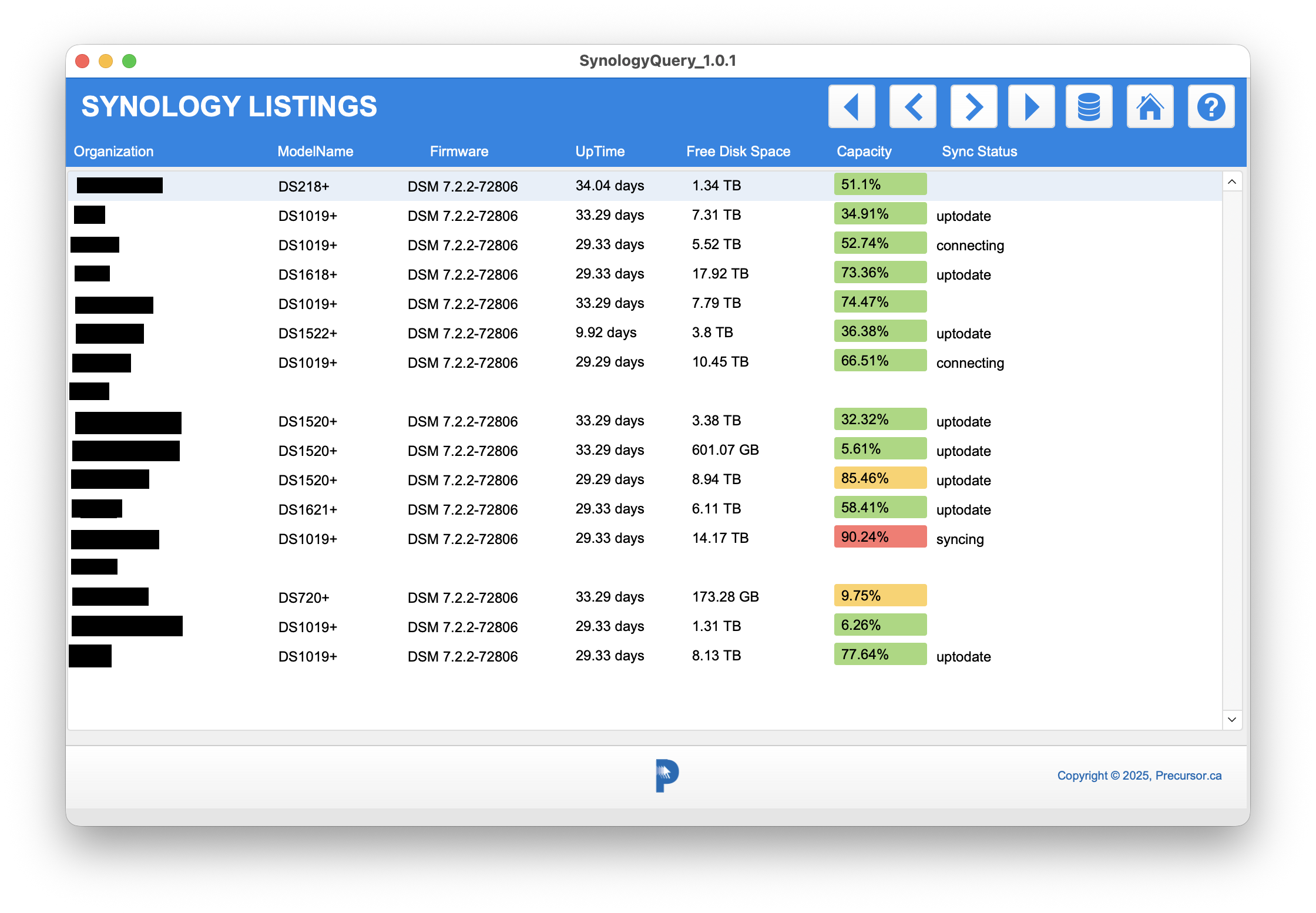 You can review summary information from all the devices here.
Get All Device Info  If you have filled out all the devices' authentication info and yo uhave the MBS plugin installed then clicking this button will get the session code and the info for each device. (Otherwise you will have to manually add in OTP codes using the method described above.)
Delete All Devices Status  Once you have all the info it will take you to the Listings page. If you want to refresh you should delete the status info first using the "Delete All Devices Status" button on the home page.
Troubleshooting 1 Note: this does not work through QuickConnect. You devices must be reachable through LAN or WAN directly (or through reverse proxy) with a valid commercial or LetsEncrypt SSL certificate. It is assumed that all your devices are set up as HTTPS and have 2FA enabled. You will need to supply the i.p. Address, the admin username and password, and a Session ID (SID) that you obtain with the ip/username/pw and a valid 2FA/OTP code.
Frequently Asked Questions Q: Does this solution require Claris FileMaker? A: Yes. You could use the 45 day trial version, but if you are member of the Apple Consultants Network your member benefits include an NFR copy. You also may be able to get an NFR by attending Claris Engage, or by becoming a Claris Partner.
Resources For more help consult:
|
Overview - Help - Devices - Listings - Get Devices - Summary - Troubleshooting - FAQ - RESOURCES
| Mastodon | YouTube | Github | Status |
|
|
|
| Copyright © 2014-26, Precursor.ca, Inc. |